Remotely Backup Security Camera Video with VMS CCTV Software
Viewtron VMS software for CCTV DVRs and IP camera NVRs allows you to remotely backup recorded video surveillance footage over an Internet connection. VMS stands for video management system. Viewtron VMS software can be used to view your security cameras and manage one or more DVR / NVR systems from a Mac or Windows PC over a network connection. Sometimes this type of security camera software is called CMS DVR software in the industry. CMS stands for Central Management Software. We sometimes refer to the Viewtron software as a CMS.
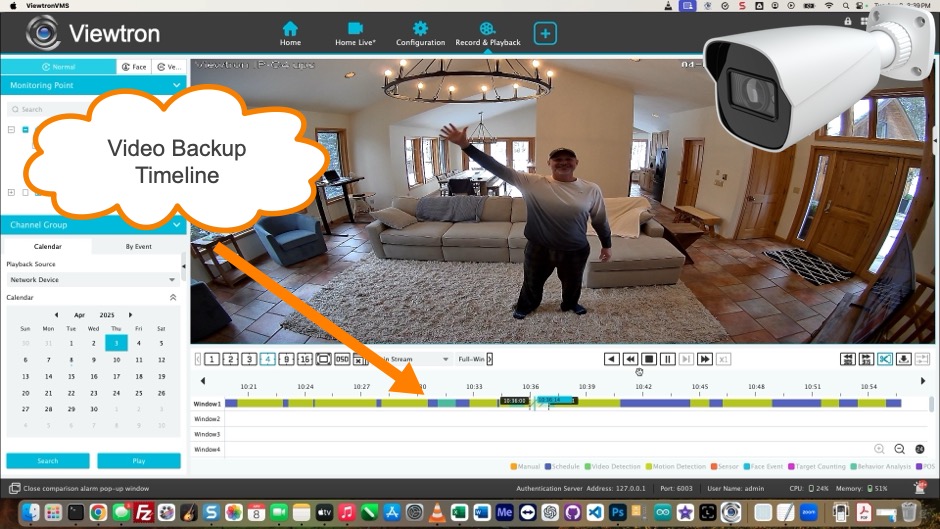
There is more than one way to use the VMS software to search for the recorded video surveillance segment that you want to backup. In this video and article, we will be using the video timeline to manually select a date and time frame to backup. This is how it works.
Free VMS Software Download
If you have not already done so, you can download the Viewtron VMS software for free on this page. Please note that this software only works with Viewtron hybrid CCTV DVRs, Viewtron IP camera NVRs, and Viewtron IP cameras.
Initial Installation and Setup
You can find the installation and setup instructions for the VMS software here.
Backup File location, Type, Size
Before you backup any video footage, you must configure the location where you want your video files saved.
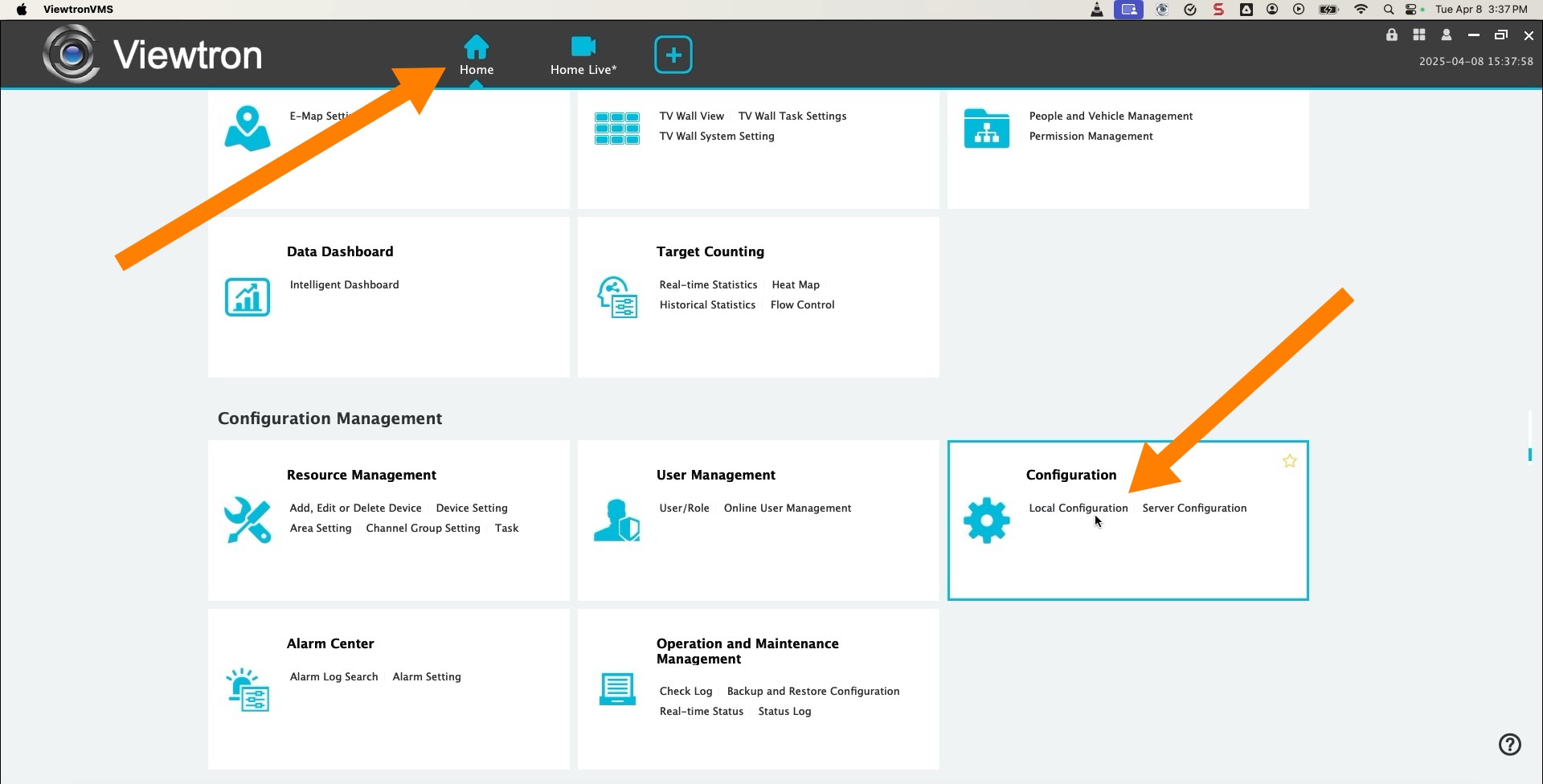
IN the VMS software, click on the Home icon. Then, click on the Local Configuration link.
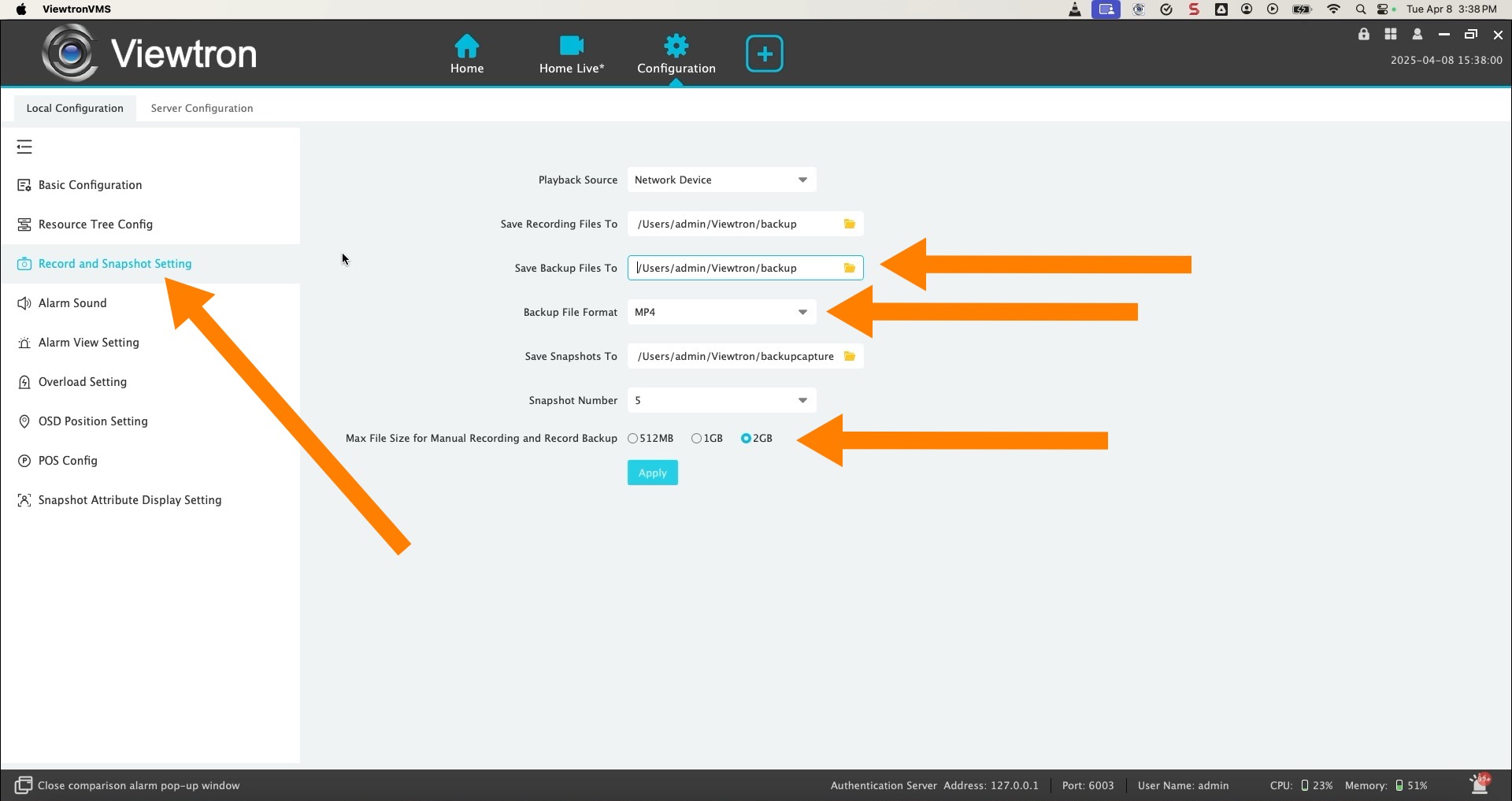
On the Configuration screen, click on the Record and Snapshot Setting link on the left. Then, click “Save Backup File To” to choose a location on your local file system where you want the backup video backup files to be exported. Choose MP4 as the Backup File Format if you want to be able to play back the video file on a Windows or Mac PC using the free VLC video player. This is the best video file format for sharing with law enforcement. Last, choose the max file size that you want to use and click Apply.
Recorded Video Search and Playback
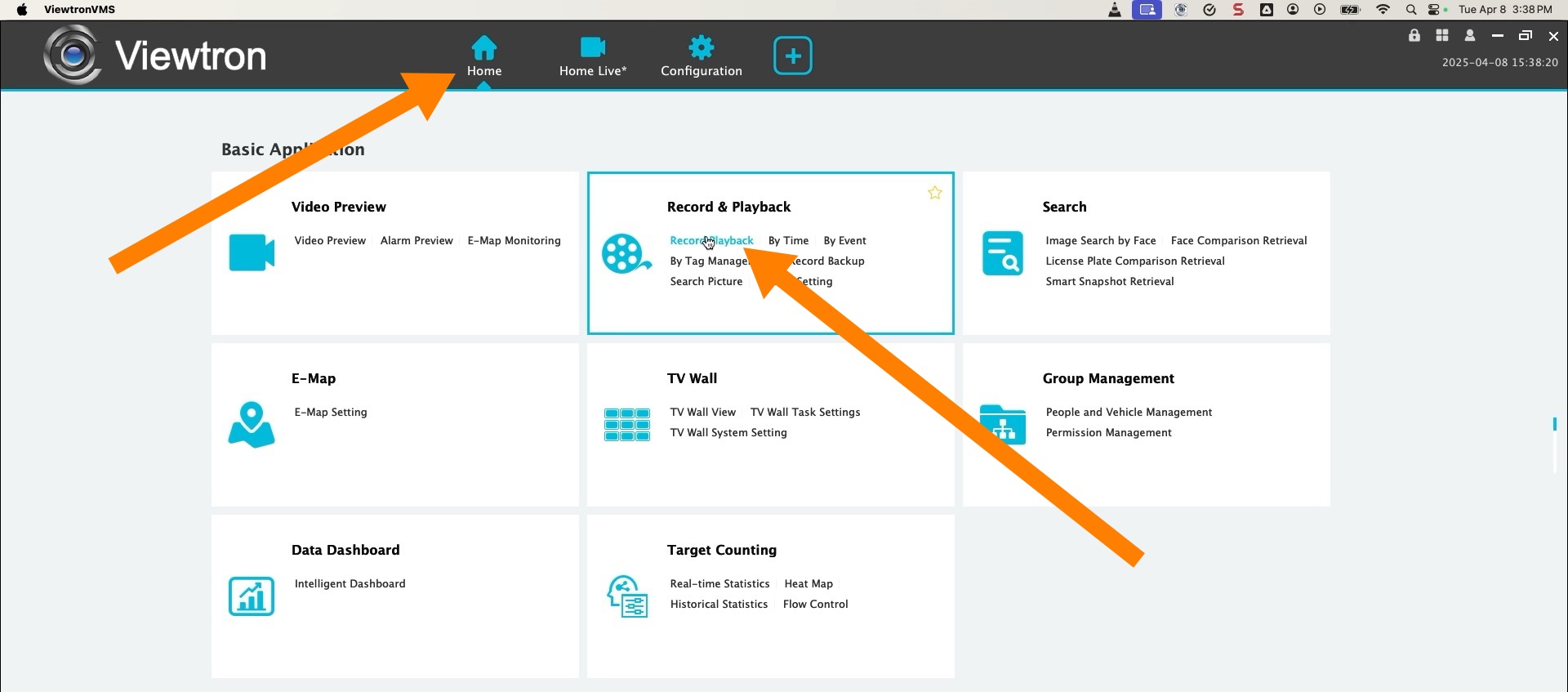
To access the recorded video playback screen, click on the Home button. Then click on the Record Playback link.
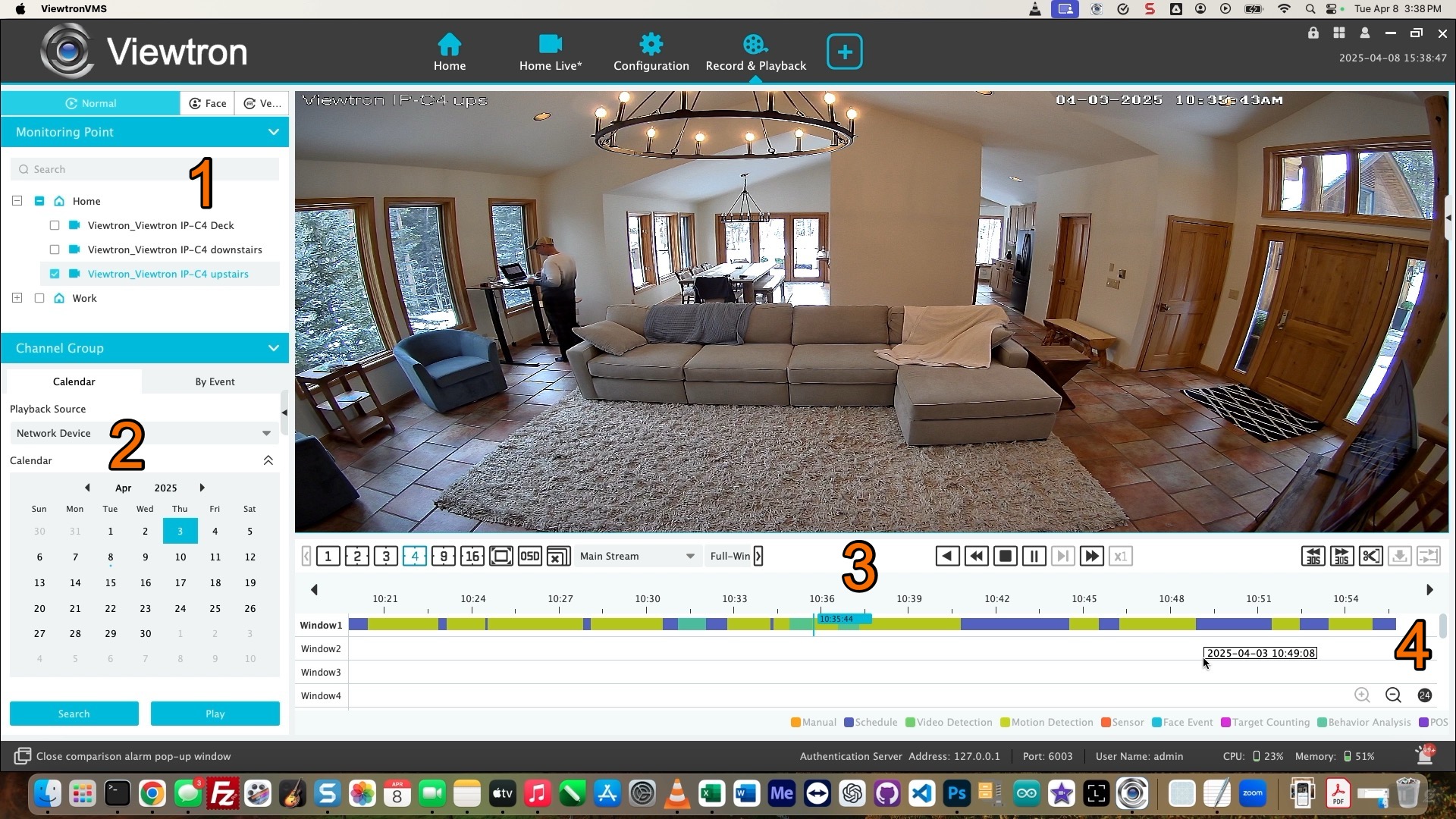
On the Record & Playback screen, do the following.
- Click and drag the security camera(s) that you want to playback recorded video from.
- Select the Month and Day that you want to playback. Then press the Search button.
- Click on the video timeline to choose a point in time to begin reviewing the video footage.
- Use the + / – magnifying glass icons to expand / retract the size of the video timeline.
Select Video Clip Timeframe to Backup
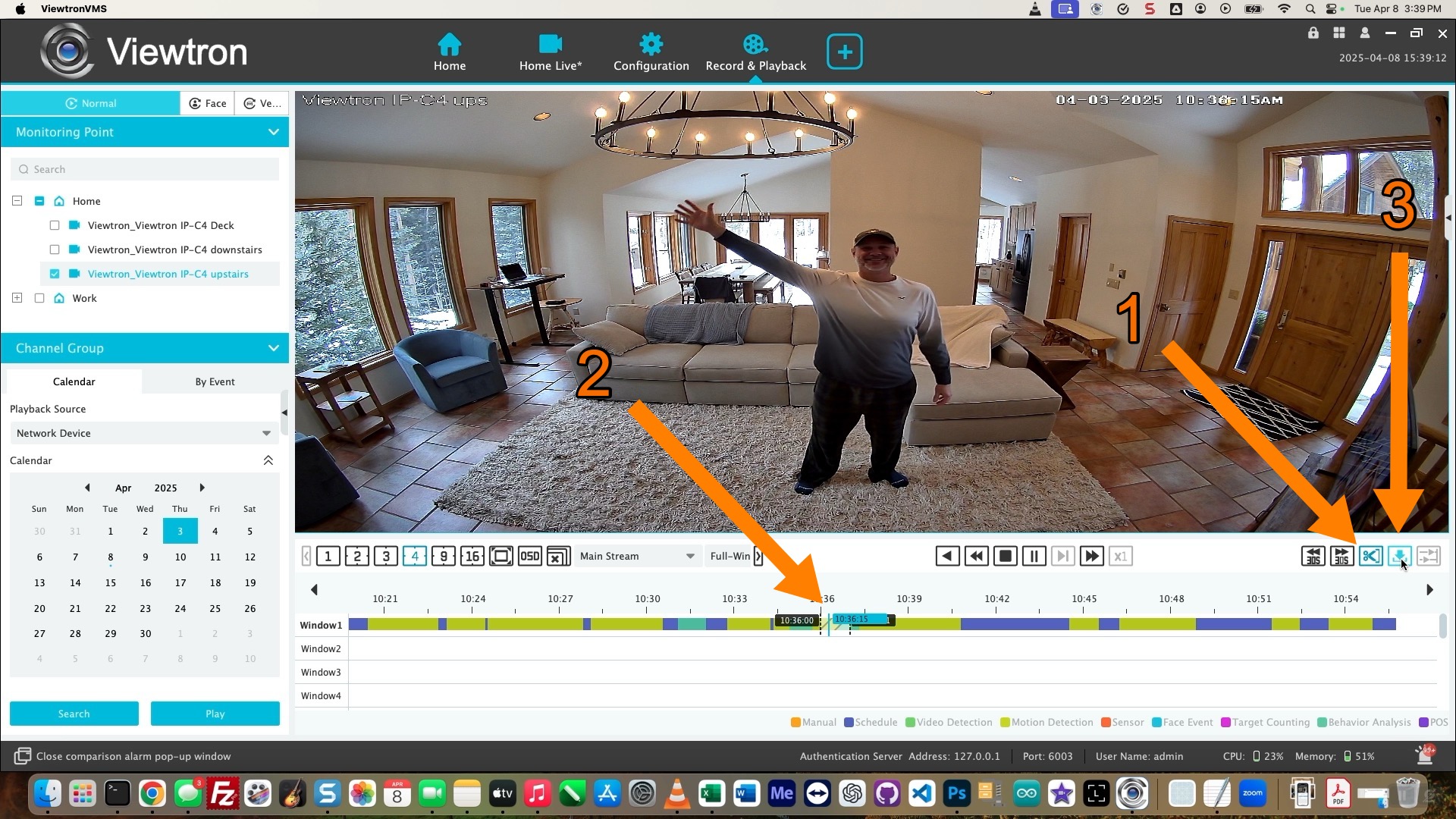
After you have reviewed your video surveillance footage, choose the segment of video to export by doing this.
- Click on the scissor tool icon.
- Click on the start time that you want on the video timeline. Then click on the end time. You will see dotted lines on the timeline indicating the duration of the video clip.
- Click on the backup icon.
Video Backup / Record Management
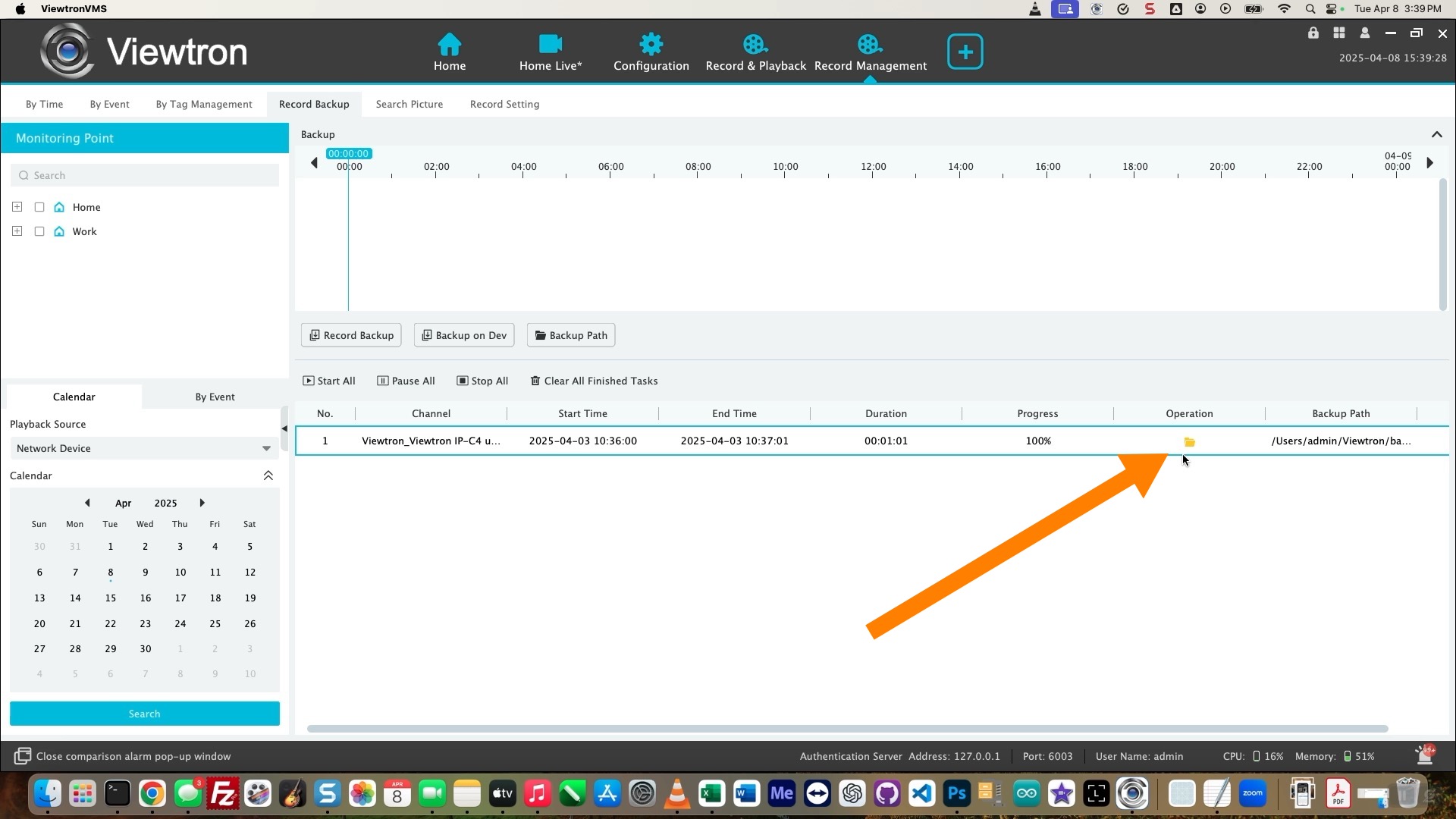
The record Management Screen will open and show the progress of the current video backup job. When the progress reaches 100%, you can click on the folder icon to open the file location of the video backup.
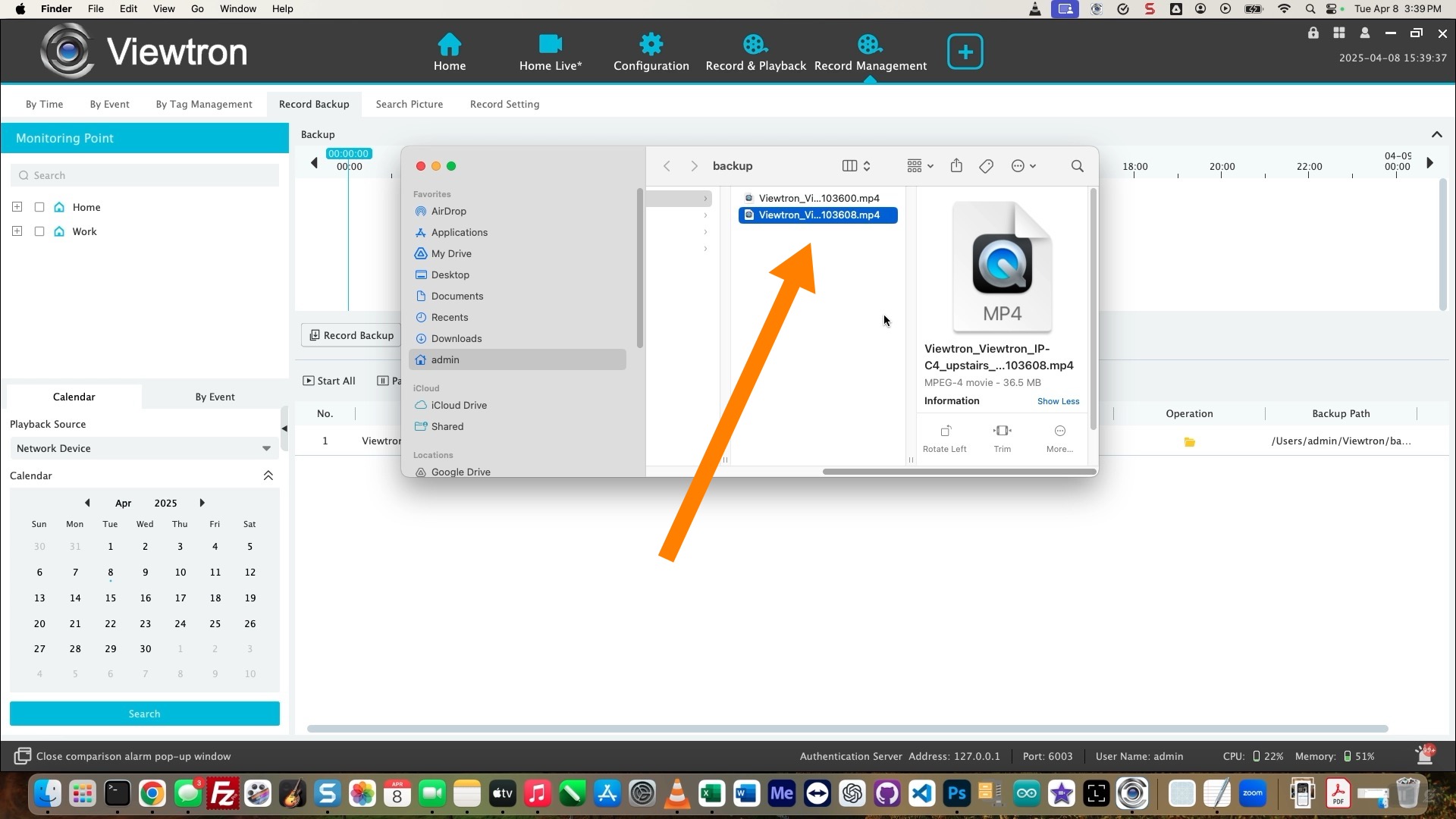
Here you can see the MP4 video backup file that I exported.
Video Backup File Playback on VLC Player
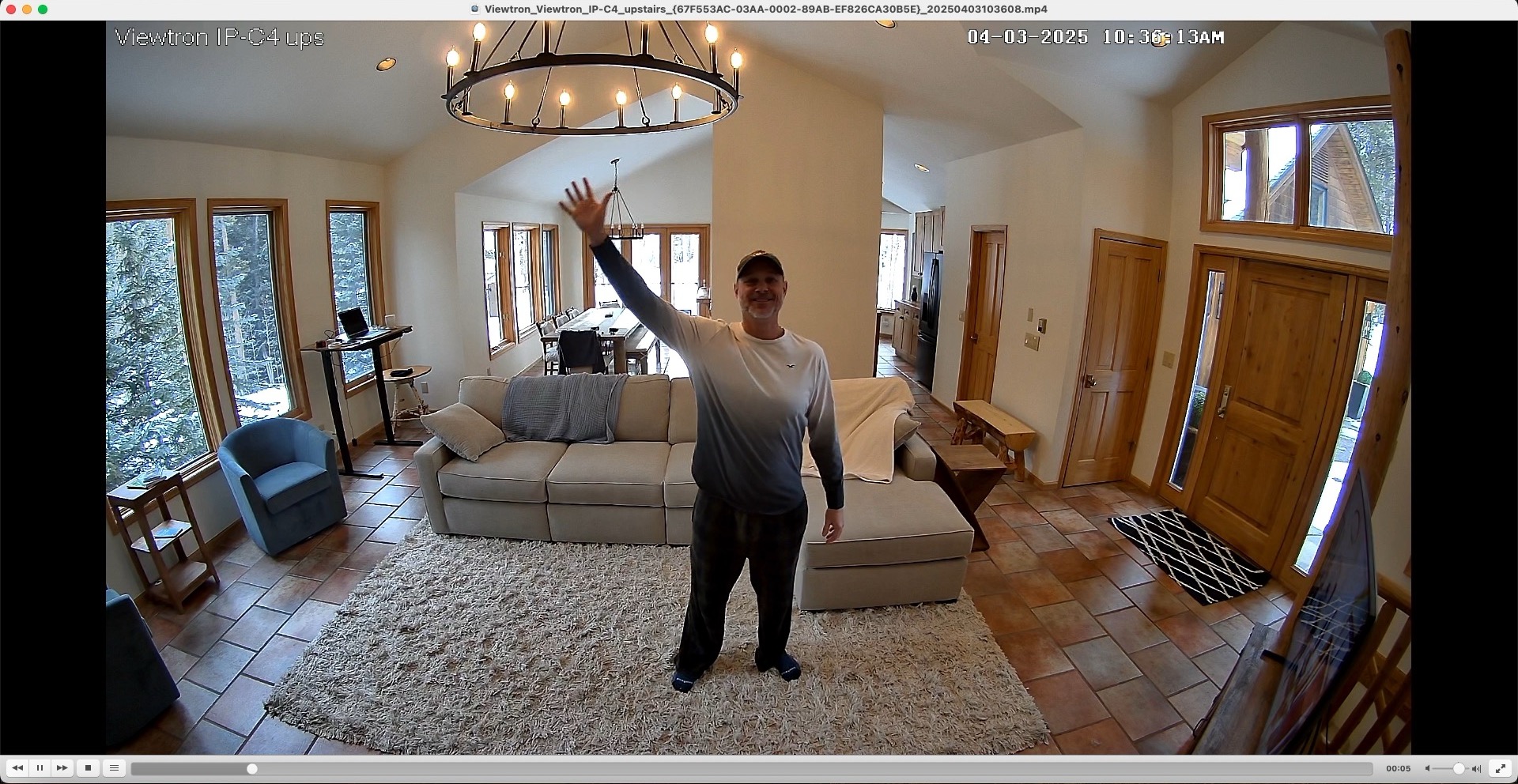
Here is a screenshot of what the video playback looks like using the free VLC video player on my Mac PC. CCTV Camera Pros recommend the VLC player as we have found that it is the most reliable to playback exported video files from Viewtron security camera systems. You can download the VLC player for free here.
Video Search by Event Type
In the above instructions, we used the timeline search to select the video segment to backup. You can also use the Search by Event function to search for video events to backup.
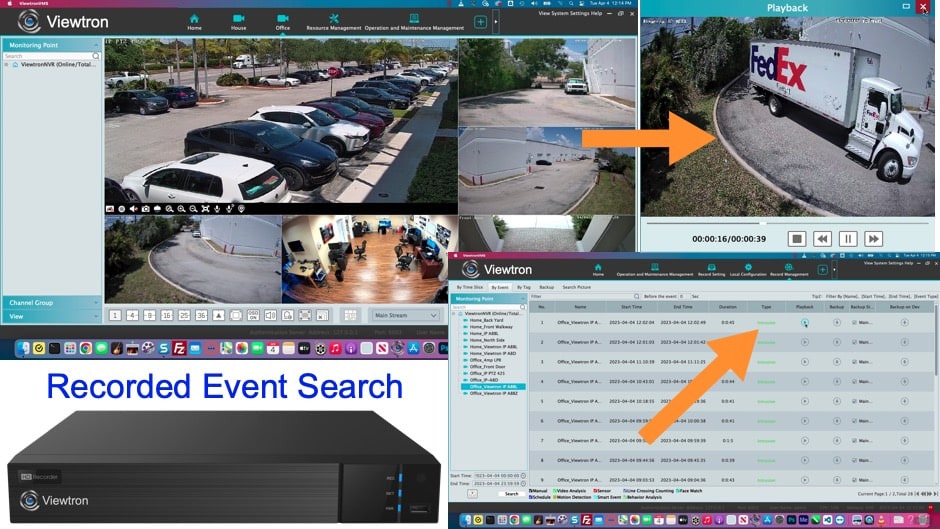
Watch this video to see how to use the Event Search function to look for motion detection, AI human detection, AI vehicle detection, license plate recognition and external alarm sensor events. There is a backup option in the list of events.
NVR Camera System Products
Here are some of the products used in this NVR camera system at my house.
- Viewtron 16 channel NVR (model VT-NVR-16)
- Viewtron Outdoor 180 Degree Camera (model IP-180-4D)
- Viewtron Security Camera with Siren and Light (model IP-AX8D)
- Viewtron Bullet AI security camera (model IP-A8BL)
All of the IP cameras that I have installed at my house are AI cameras.
More Viewtron VMS Video Demos
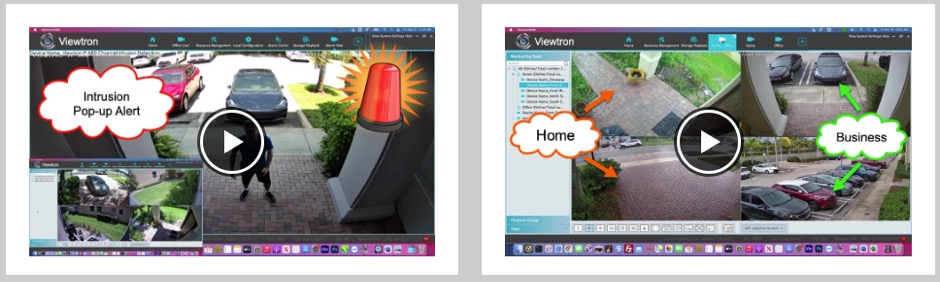
You can watch additional Viewtron CCTV VMS software videos on this page. You can find the main Viewtron security camera system tech support page here.
Have Questions / Need Help?
If you have any questions about this article or anything related to video surveillance systems, please email me at mike@cctvcamerapros.net.
Video Transcript
Hey, guys. Mike from CCTV Camera Pros here. In this video, I’m going to show you how you can remotely backup video surveillance footage using the VMS software for CCTV cameras and network IP cameras. So, I have a Viewtron IP camera system installed at a home in Colorado, and I’m back here in West Palm Beach. I’m going to go inside on my Mac laptop and remotely access the IP camera system in Colorado and select a segment of recorded video surveillance footage that’s on the hard drive and back it up here in Florida locally to the hard drive on my MacBook as an MPEG4 video file. From there, I can put it on USB thumb drive. I can email it to people. I can put it on Google Drive. I could share it however I want.
Let’s go inside and log into the Viewtron VMS software. Here’s the live security camera view on the VMS software on my MacBook. And this upstairs family room camera is the one I want to back up some video surveillance footage from. So first thing, I want to configure where I’m going to save the backup file. So, if I go into this configuration screen, you can see that you can set up the location that backup files will go to. I’m also going to select MP4 for the format, and I’m going to select 2 gigabyte for the max record backup size. I click Apply there and I go back to the live view. So next, I’m going to click on this home button and then select Record and Playback from this menu.
On the Record and Playback screen, I can select the date that I want to search, and then you can select one or more security cameras. I’m just going to select that upstairs family room camera and drag it, and then this video timeline player will appear. And then if you expand that, you’ll notice there’s color annotations on that timeline for when things like motion detection occurred or when an AI event occurred. And to select a segment of video, I click on this scissor icon over here, and then I can click on the timeline to select a start and end time that I basically want to back up. So, that scissor is basically letting you select a clip in time. And once the start time and end time is selected, I can click this backup icon over here on the right. That’ll open up this screen and you’ll see the progress percentage for that backup and the location that it’s backing up to. As soon as that’s done, the progress will reach 100% and when it’s done, I can click on this folder icon and that’ll open up the location of the backup video file and then I’ll show you just want to show you the location where it’s saved.
And then if I click on it and select Open. I’m going to use the VLC player. The free open source VLC player tends to work better than the QuickTime app on Mac and better than the Windows Media Player. So I always use the free VLC player. And here’s that segment of video playing back on my MacBook. And now that this is exported, I could do whatever I want with it. So if I want to put it on a USB drive, if I want to send it to someone via email or put it on a backup drive like Google Drive, I can. And then I’m just going to go back to the live view of the security camera system out there in Colorado to wrap up.
Guys, I hope this video has been helpful. The Viewtron VMS software for CCTV camera systems and IP camera systems is available for free for download for Mac and Windows PCs. The functionality is exactly the same in the demo that you just watched, and this is for Viewtron security camera systems exclusively. Guys, if you have any questions about this software or anything related to video surveillance systems, you can always email me directly at mike@viewtron.com. If you want to learn more about the Viewtron VMS software and download it for your system, please visit www.viewtron.com/VMS. Thank you for watching.